
Installing an APK on Android can sometimes result in an “App not installed” message. This usually means Android could not complete the installation because of an issue with the APK file, device compatibility, available storage, permissions, or an existing version of the app.
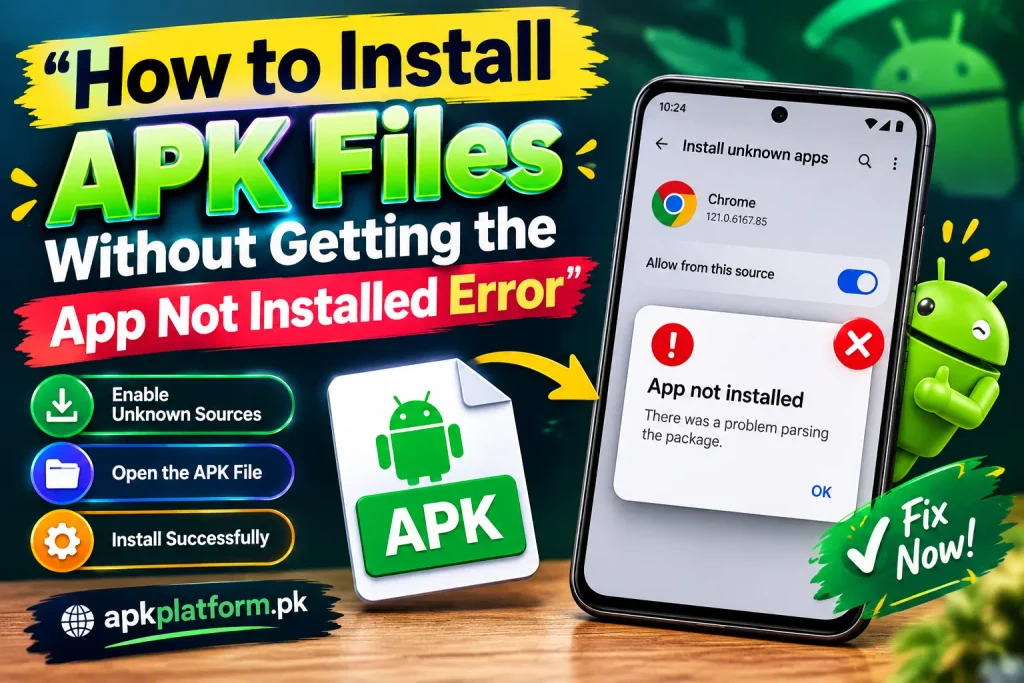
The problem can often be fixed by checking a few basic settings and making sure the APK is suitable for your Android device.
In this guide, you will learn why the APK not installed error happens, how to fix it, and what to check before trying the installation again.
For more Android APKs, games, installation guides, and useful app information, visit apkplatform.
Why Does Android Say “App Not Installed”?
The “App not installed” message can appear for several reasons. Android may reject an APK when the file is incomplete, incompatible with your device, conflicts with an existing application, or does not have the required installation permissions.
Common causes include:
- Insufficient storage space
- Incompatible Android version
- Damaged or incomplete APK file
- Existing app version conflict
- Incorrect APK variant
- Installation permission restrictions
- Security settings blocking the installation
Identifying the cause can make it easier to apply the correct solution.
Check Your Android Storage
Low storage is one of the simplest reasons an APK may fail to install.
Before installing an APK, open your Android device’s storage settings and check how much free space is available. If your phone is almost full, remove unnecessary files, unused apps, videos, or other large items.
After freeing enough storage, restart the installation process.
Check Your Android Version
Some APK files require a specific Android version or newer.
To check your Android version, open:
Settings → About Phone → Android Version
Compare your Android version with the requirements of the APK you are trying to install.
If the application requires a newer version of Android than your device supports, the installation may not complete.
Check Whether the APK File Is Complete
A damaged or incomplete APK can cause installation problems.
If the download was interrupted or the file was not downloaded correctly, Android may not be able to read the package properly.
Try downloading the APK again and make sure the download finishes completely before opening the file.
Avoid repeatedly installing a file that appears damaged or incomplete.
Allow APK Installation From the Correct Source
Android can restrict APK installations from sources that have not been granted permission.
If you downloaded the APK through a browser, file manager, or another application, Android may ask you to allow that specific source to install applications.
Depending on your Android version, you may find this setting under:
Settings → Apps → Special App Access → Install Unknown Apps
Select the application you are using to open the APK and allow installation when required.
Only enable this permission for sources you trust.
For additional information about Android app installation and security, see Google’s Android Help.
Check for an Existing App Version
An existing version of the same application can sometimes interfere with a new APK installation.
If the application is already installed, check whether the APK is intended to update that existing installation.
If the new APK uses a different signing key or package configuration, Android may refuse to install it over the existing application.
If you do not need the existing version, you can consider uninstalling it before installing the new APK. Remember that uninstalling an application may remove locally stored app data.
Make Sure You Have the Correct APK
Not every APK file is designed for every Android device.
Some applications are distributed in different versions for different Android versions, processors, screen configurations, or device architectures.
If an APK is incompatible with your device, Android may display an installation error.
Before downloading an APK, check its listed Android requirements and make sure the file matches your device.
If you are experiencing installation problems with a particular game APK, our 98S Game guide also provides Android installation information.
Restart Your Android Phone
A simple restart can sometimes resolve temporary installation problems.
Restart your phone and wait until Android has fully loaded. Then locate the APK file and try the installation again.
This is especially useful if you recently changed an installation permission or updated your Android system.
Clear Temporary Problems With the File Manager
If the APK opens incorrectly or the installation process stops unexpectedly, try locating the file again through your device’s file manager.
Open your Downloads folder, select the APK, and start the installation again.
If the problem continues, delete the current APK and download a fresh copy.
What If the APK Still Will Not Install?
If you have checked storage, Android compatibility, permissions, and the APK file but the error continues, consider the following:
Check the APK Requirements
Make sure your device meets the minimum Android version and other requirements listed for the application.
Check Available Storage Again
Some installations require additional temporary storage. Make sure your device has enough free space rather than only enough space for the APK file itself.
Remove an Unneeded Existing Version
If the same application is already installed and you do not need its existing data, uninstalling it may allow the new APK to install.
Download the File Again
A fresh download can resolve problems caused by an incomplete or corrupted APK.
Check Your Android Security Settings
Review your device’s security settings if Android is preventing the installation. Do not disable important security features simply to force an APK installation.
How to Avoid the APK Not Installed Error
A few simple checks before installation can reduce the chance of encountering the error.
- Check your Android version
- Keep enough free storage available
- Download the complete APK file
- Use the correct APK version for your device
- Review installation permissions
- Check whether another version of the app is already installed
- Keep Android security settings enabled
- Avoid installing files from unknown or suspicious sources
Taking these steps before opening an APK can make the installation process smoother.
Installing a Game APK
Game APKs can have additional requirements such as a specific Android version, available storage, or additional app data.
If you are experiencing installation problems with a particular game APK, our 98S Game guide also provides Android installation information.
You can also check the installation steps provided in our 90X Game APK guide.
Can I Install an APK Without Google Play Store?
Yes, Android can allow applications to be installed from APK files outside Google Play when the appropriate installation permission is enabled.
However, you should carefully check the APK file and its source before installing it. Installing an APK from an untrusted source can create security and privacy risks.
If you are new to APK installation, read our guide on how to install an APK on Android before troubleshooting installation errors.
Does Deleting the APK Fix the Installation Error?
Deleting the APK does not normally fix the underlying installation problem.
If the file is damaged or incomplete, however, deleting it and downloading a fresh copy can help.
After confirming that the new APK is complete and compatible with your device, try the installation again.
Is the “App Not Installed” Error Permanent?
No. The error does not necessarily mean that your Android phone cannot install APK files.
In many cases, the problem is related to storage, compatibility, permissions, an existing application, or the APK file itself.
Checking these areas one by one can help identify the reason for the failed installation.
Frequently Asked Questions
Why does my APK say “App not installed”?
The error can occur because of insufficient storage, an incompatible Android version, a damaged APK, installation restrictions, or a conflict with an existing application.
How do I fix the APK not installed error?
Start by checking your storage and Android version. Then verify the APK file, review installation permissions, and check whether another version of the same application is already installed.
Why won’t my APK install even though I have enough storage?
Storage is only one possible cause. The APK may be incompatible with your Android version, damaged, incorrectly packaged, or conflicting with an existing application.
Can an old Android version cause an APK installation error?
Yes. If an APK requires a newer Android version than the device supports, Android may prevent the installation.
Should I uninstall the old version before installing a new APK?
Not always. If the new APK is a compatible update, it may install over the existing version. If there is a package or signing conflict, removing the existing version may be necessary. Uninstalling can remove locally stored app data.
Is it safe to enable APK installation?
Installing APKs can involve security risks, especially when the file comes from an unknown source. Only allow installation from sources you trust and review Android’s security settings before proceeding.
Final Thoughts
The “App not installed” error can usually be investigated by checking the most common causes first. Make sure your device has enough storage, supports the required Android version, and has permission to install the APK.
You should also verify that the APK file is complete and suitable for your device. If another version of the application is already installed, check for compatibility or package conflicts before trying again.
Taking these steps can help you troubleshoot APK installation problems without making unnecessary changes to your Android device.