
If you want to know how to uninstall APK apps from an Android phone, the process is usually simple. An APK installed on Android can generally be removed in the same way as other applications, whether it was installed from a downloaded APK file or another source.
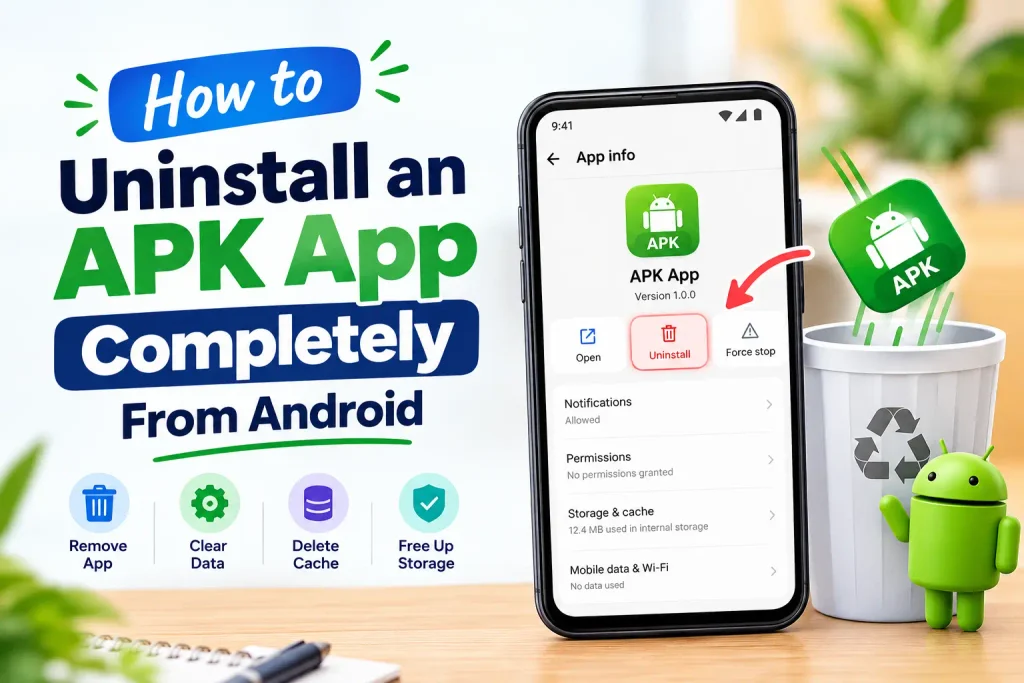
Uninstalling an APK app can help free storage, remove an application you no longer need, or prepare your phone for a fresh installation. However, simply deleting the APK file from your Downloads folder does not uninstall the application.
This guide explains how to uninstall APK apps properly, remove leftover files when necessary, protect important app data, and troubleshoot common uninstall problems.
For more Android APKs, installation guides, troubleshooting tips, and useful app information, visit apkplatform.
What Is an APK App?
APK stands for Android Package Kit. It is the file format used to distribute and install applications on Android devices.
When you install an APK, Android adds the application to your device. After installation, the original APK file may remain in your Downloads folder, but it is separate from the installed application.
This means deleting the downloaded APK file does not remove the installed app.
To completely remove an installed APK app, you normally need to uninstall the application through Android’s app settings or app management options.
How to Uninstall APK on Android
The easiest way to uninstall APK apps is through your Android phone’s Settings.
Step 1: Open Android Settings
Open the Settings app on your Android phone.
The exact menu names can vary depending on the Android version and device manufacturer.
Step 2: Open the Apps Section
Look for an option such as:
- Apps
- Apps & notifications
- App management
- Manage apps
- Applications
Tap the relevant option to view applications installed on your phone.
Step 3: Find the APK App
Scroll through the installed applications or use the search option if your phone provides one.
Find the application you want to remove.
Step 4: Open the App Information Page
Tap the application name to open its information page.
You may see options such as storage, permissions, notifications, mobile data, and battery usage.
Step 5: Tap Uninstall
Select Uninstall and confirm the action when Android asks you to do so.
Android will remove the application from the device.
If you need help with the reinstallation process, follow our guide on how to install an APK on Android for step-by-step instructions.
How to Uninstall an APK From the Home Screen
Some Android phones allow you to uninstall an application directly from its home-screen icon.
Follow these general steps:
- Find the app icon on your home screen or app drawer.
- Press and hold the icon.
- Look for Uninstall or App info.
- Select Uninstall if it is available.
- Confirm the removal.
The available options depend on your Android version and device manufacturer.
If you only see Remove from Home screen, that does not uninstall the application. It only removes the shortcut or icon from the home screen.
If you are removing an installed game such as 90X Game APK, you can also review its APK information before reinstalling it later.
Does Deleting the APK File Uninstall the App?
No. Deleting the original APK file normally does not uninstall the application.
For example, if you downloaded an APK to your Downloads folder and installed it, Android creates the installed application separately.
You can delete the downloaded APK after installation if you no longer need the installation file. However, the installed app will remain on your phone until you uninstall it.
This distinction is important when trying to free storage or remove an application completely.
How to Remove an APK App and Its Data
When you uninstall an application through Android, the app itself is removed. Depending on the application and Android device, associated app data may also be removed.
Before uninstalling an app, consider whether you need information stored inside it.
Important data may include:
- Login information
- Saved settings
- Game progress
- Downloaded content
- Locally stored files
- Account-related information
If the application provides a backup or account-sync option, use it before uninstalling if you need to preserve important information.
Do not assume that reinstalling the same APK will automatically restore all local data.
For additional Android app management and device guidance, you can refer to Google’s official Android Help.
How to Delete the APK File After Uninstalling
After uninstalling an APK app, you may still have the original APK file saved on your phone.
To remove it:
- Open your Files or File Manager app.
- Open the Downloads folder.
- Find the APK file.
- Select the file.
- Tap Delete.
- Confirm the deletion.
The exact file manager and menu names may vary between Android devices.
Deleting the APK file is optional after the app has been uninstalled, but it can help recover storage space.
How to Uninstall APK When There Is No Uninstall Button
Sometimes Android may not show a normal Uninstall button.
There can be several reasons for this.
The App Is a System Application
Some applications that come pre-installed with Android or your device manufacturer cannot be completely uninstalled.
Instead, Android may provide a Disable option.
The App Has Special Device Access
An application with certain device-management privileges may need those privileges removed before it can be uninstalled.
Check the security or device administration settings on your phone and review which applications have special access.
The App Is Restricted
Some work, school, parental-control, or security configurations may prevent an application from being removed.
If the phone is managed by an organization, the administrator may control application installation and removal.
How to Uninstall an APK That Keeps Causing Problems
If an APK application is crashing, freezing, or behaving unexpectedly, uninstalling it can be one troubleshooting step.
Before removing it, make sure you understand whether important information is stored locally.
A basic troubleshooting process is:
- Close the application.
- Restart the phone if necessary.
- Check whether an update is available from a trusted source.
- Back up important information.
- Uninstall the application if the problem continues.
- Restart the phone.
- Reinstall only if you have a legitimate reason to use the application.
If you are removing an installed game such as 90X, you can also review the game’s APK information before reinstalling it later.
You can learn more about 90X Game APK here: https://apkplatform.com/90x-game/
Should You Clear App Data Before Uninstalling?
Clearing app data is not normally required before uninstalling an application.
However, it can be useful when troubleshooting an application that is not working correctly.
You can usually find storage options by opening:
Settings → Apps → Select the App → Storage
Depending on your Android version, you may see options such as Clear cache and Clear storage.
Be careful when clearing storage because it can remove locally saved application data.
If your goal is simply to uninstall the app, you can normally use the Uninstall option directly.
What Happens to App Permissions After Uninstalling?
When an application is removed, its active app installation and associated permissions are generally removed with it.
This means the application should no longer have access to device resources through its previous installation.
If you later reinstall the application, Android may ask for permissions again.
Review permissions carefully rather than automatically granting every request.
Can You Reinstall an APK After Uninstalling It?
Yes, an APK application can generally be reinstalled if you still have a compatible and trustworthy installation file.
Before reinstalling, check:
- Android compatibility
- Available storage
- APK file integrity
- Application version
- Required permissions
- Download source
If the previous installation caused problems, reinstalling the same file may reproduce the issue.
If you plan to reinstall an Android game after uninstalling it, you can also check our 98S Game guide for APK and installation information.
What If the APK Will Not Uninstall?
If Android refuses to uninstall an APK app, first restart your phone and try again.
If the problem continues, check whether the application has special device access or administrator privileges.
You can also open the app’s information page and look for options related to permissions, special access, or device administration.
Avoid using unknown third-party removal tools simply because the normal uninstall process is not working. Such tools may request unnecessary permissions.
How to Free Storage After Uninstalling an APK
Uninstalling an application may free some storage, but additional files can remain in places such as Downloads.
After uninstalling, check:
- Downloads
- APK files
- Large media files
- Unused applications
- Cached content
- Offline downloads
Use Android’s built-in storage tools where available to identify large files and applications.
Avoid deleting unfamiliar system files manually because removing the wrong file can cause other problems.
Is It Safe to Uninstall an APK App?
Uninstalling a normal Android application is generally a routine device-management task.
The main concern is what information you may lose when the application is removed.
Before uninstalling an important game or app, check whether it stores account information, progress, settings, or files locally.
If you use an online gaming application, also make sure you understand its account and transaction rules before removing it. Keep your login credentials private and never share passwords, OTPs, PINs, or verification codes with another person.
FAQs About Uninstalling APK Apps
How do I uninstall APK on Android?
Open Settings, go to Apps or App management, select the APK-installed application, tap Uninstall, and confirm the removal.
Does deleting an APK uninstall the app?
No. Deleting the APK file from your Downloads folder does not normally uninstall the application. You need to remove the installed app through Android’s uninstall option.
Can I reinstall an APK after uninstalling it?
Yes. You can reinstall a compatible APK if you have a trustworthy installation file and your Android device meets the application’s requirements.
Will uninstalling an APK delete my app data?
Uninstalling an application can remove locally stored app data. Important information should be backed up or synchronized before uninstalling when possible.
Why can’t I find the Uninstall option?
The application may be a system app, have special device-management privileges, or be restricted by your device’s security or management settings.
Should I delete the APK file after uninstalling the app?
If you no longer need the installation file, you can delete it from your Downloads or file manager to recover storage.
Final Thoughts
Knowing how to uninstall APK apps properly can help you manage Android storage and remove applications you no longer need. Remember that deleting an APK installation file is different from uninstalling the application itself.
For most apps, the safest approach is to use Android’s built-in Settings or uninstall option. Before removing an application, consider whether you need its saved data, account information, or files.
After uninstalling, you can also check your Downloads folder and storage settings for unnecessary files. If you decide to reinstall the application later, check its compatibility, version, permissions, and installation source first.
For more Android APKs, installation guides, troubleshooting tips, and useful app information, visit our homepage.