
APK permissions are an important part of checking an Android application before installation. Permissions determine what parts of your device an app may be able to access, such as files, camera, microphone, location, contacts, notifications, or other features.
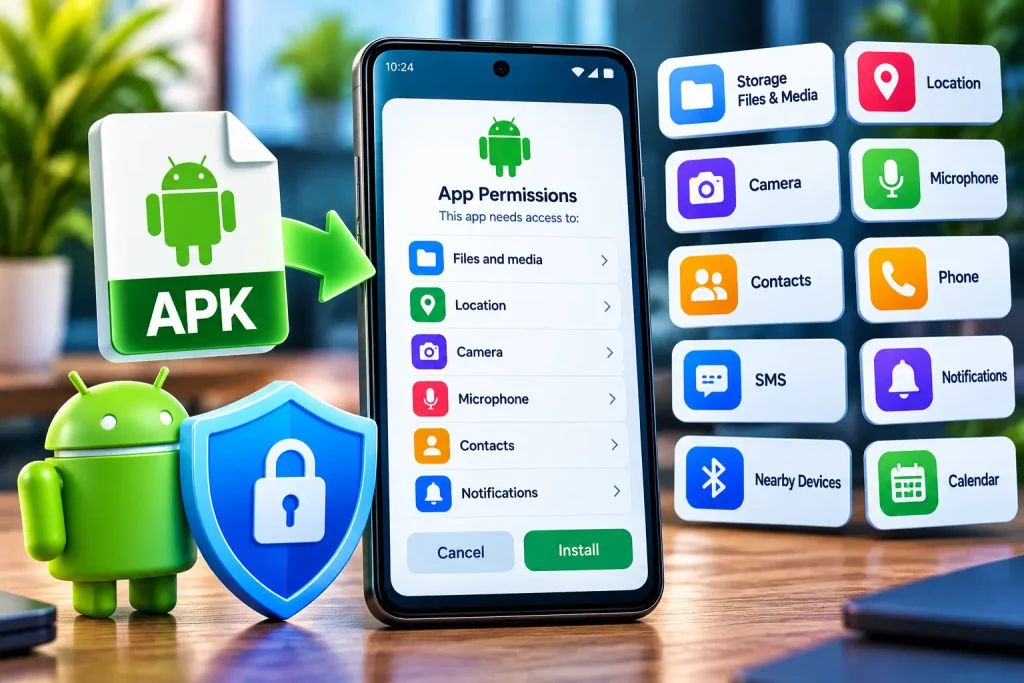
Not every application needs the same permissions. The permissions requested should make sense for what the application is designed to do. Reviewing them before and after installation can help you understand the level of access an app may request.
This guide explains common APK permissions, which ones deserve closer attention, how to review permissions on Android, and what to do when an application requests access that you do not expect.
What Are APK Permissions?
APK permissions are access requests associated with an Android application.
When an application needs access to a device feature or certain information, Android may require the application to request the relevant permission.
Depending on the Android version and application, permissions may involve:
- Camera
- Microphone
- Location
- Contacts
- Phone
- SMS
- Files and media
- Notifications
- Nearby devices
- Calendar
Android controls how permissions are requested and managed, but the exact options can vary between Android versions and device manufacturers.
Why Should You Check APK Permissions?
Checking APK permissions can help you understand what an application may access after installation.
An application may have a legitimate reason to request a particular permission. For example, a camera application may reasonably need camera access.
However, a permission request that appears unrelated to the application’s main function deserves additional attention.
Before installing an APK, consider:
- What does the application do?
- Which permissions does it request?
- Why would it need each permission?
- Is the permission necessary?
- Can the application function without it?
- Does the source clearly explain the application?
Permissions are only one part of APK safety. You should also consider the download source, APK file, application version, compatibility, and Android security warnings.
Before installing an APK, you can also follow our APK Installation Guide for Android Beginners to review the basic installation and safety steps.
Which APK Permissions Should You Check?
There is no single permission that is automatically unsafe. The important question is whether the requested access makes sense for the application.
The following permissions are worth reviewing carefully.
1. Camera Permission
Camera access allows an application to use your device’s camera when Android grants the relevant permission.
Camera permission can be reasonable for applications that take photos, scan documents, record video, or provide camera-based features.
If an application has no clear reason to use the camera, review the request before granting access.
You can check whether an application has camera access through your Android permission settings.
2. Microphone Permission
Microphone permission allows an application to access audio input.
This can be necessary for:
- Voice calls
- Voice recording
- Video recording
- Voice commands
- Audio-related features
If an application does not appear to require audio functionality but requests microphone access, consider whether you actually need to grant it.
You can usually change microphone access later through Android’s app permission settings.
When reviewing an APK-based game, you should also pay attention to the permissions and app information provided before installation, including the details in our 88KA Game APK guide.
3. Location Permission
Location permission can provide an application with information about your device’s location.
Some applications use location for maps, navigation, local services, or location-based features.
Android may provide different location options depending on the device and Android version.
Before granting location access, consider whether the application genuinely needs your location to provide its main features.
If location is not necessary, review whether you can deny or limit access.
4. Contacts Permission
Contacts access can allow an application to read information from your device’s contact list.
This permission deserves attention because contacts may contain information about other people as well as information you have saved for your own use.
Before granting contacts access, consider why the application needs it.
If the application does not provide a feature that obviously requires contacts, you may not need to approve the permission.
5. Files and Media Access
Applications may need access to files or media for functions such as opening documents, uploading images, saving downloads, or managing local content.
The exact permission behavior depends on your Android version.
When an application requests access to files or media, consider what type of information it may be able to access and whether the request is necessary for the feature you want to use.
Avoid granting broad access without understanding what it provides.
6. Phone Permission
Some applications may request access related to phone functions.
Depending on the Android version and permission involved, this can include access to certain phone-related information or functions.
Review the reason for the request before granting it.
If the application does not appear to have a phone-related function, ask yourself whether the permission is necessary.
7. SMS Permission
SMS-related access can be particularly important because text messages may contain private conversations or verification codes.
An application should have a clear reason for needing SMS access.
Be especially careful with any application that asks you to share OTPs or verification codes manually.
Never provide an OTP, PIN, password, or banking verification code to another person simply because an application or website asks for it.
8. Notification Permission
Notifications allow an application to display alerts on your Android device.
Notifications can be useful for messages, updates, reminders, and other app functions.
However, notification access can also affect what information appears on your screen.
If an application does not need notifications, you can review whether you want to allow them.
9. Nearby Devices Permission
Some applications use nearby-device access to communicate with hardware such as Bluetooth devices or other compatible equipment.
This permission can make sense for applications designed to connect to external devices.
If an application has no apparent reason to interact with nearby hardware, review the permission request before approving it.
10. Calendar Permission
Calendar access allows an application to interact with calendar information.
This can be useful for scheduling, reminders, and productivity applications.
Before granting calendar access, check whether the application’s features actually require it.
Are All APK Permissions Dangerous?
No.
A permission is not automatically dangerous simply because an application requests it.
Many legitimate applications require permissions to provide their intended features.
For example:
- A camera app may need camera access.
- A navigation app may need location access.
- A voice recorder may need microphone access.
- A calendar app may need calendar access.
The important consideration is whether the requested permission is relevant to the application’s function and whether you are comfortable granting that access.
How to Check APK Permissions on Android
After installing an application, Android usually provides a way to review its permissions.
The exact menu names can differ depending on your device and Android version.
A common path is:
Settings → Apps → Select the App → Permissions
You may see categories such as:
- Allowed
- Not allowed
- Camera
- Microphone
- Location
- Contacts
- Files and media
Review the available options and change permissions according to your needs.
Some Android versions may provide additional controls for individual permissions.
For a broader safety review, see our guide on How to Check if an APK File Is Safe Before Installing.
Can You Deny APK Permissions?
In many cases, yes.
Android allows users to control certain application permissions. Depending on the permission and Android version, you may be able to choose whether access is allowed, denied, or limited.
However, denying a required permission can affect the application’s functionality.
For example, a video-calling application may not be able to use its camera feature if camera access is denied.
If an application stops working after you deny a permission, check whether that permission is necessary for the specific feature you are trying to use.
What If an APK Requests Too Many Permissions?
If an APK appears to request many permissions that do not seem related to its purpose, pause before installation.
Check:
- The application description.
- The developer or publisher information.
- The download source.
- The requested permissions.
- The application’s main features.
- Android security warnings.
Do not assume that a large number of permissions automatically means the APK is harmful. Instead, look at whether the requests have a reasonable connection to the application’s functionality.
If you cannot understand why an application needs certain access, consider not installing it.
How to Review Permissions After Installing an APK
You can review permissions after installation even if you originally allowed them.
Open your Android settings and look for the application’s permission controls.
Check which permissions are currently allowed and decide whether each one is necessary.
If you no longer want to provide a permission, Android may allow you to change or revoke it.
Remember that the available controls depend on your Android version, device manufacturer, and the specific permission.
For additional information about managing Android apps and device settings, you can also refer to Google’s official Android Help.
APK Permissions for Android Games
Android games may request permissions for different features, but the requirements can vary between applications.
When reviewing an APK-based game, you should also pay attention to the permissions and app information provided before installation.
You can review the [786 Bet Game APK] information when checking an APK-based game and its installation details.
Before installing a game APK, also consider the download source, Android compatibility, application version, storage requirements, and security warnings.
If an application involves an account, never share your password, OTP, PIN, or other verification information with another person.
What Permissions Should You Avoid Automatically Granting?
You should not automatically approve every permission request.
Instead, consider the purpose of each request.
Pay particular attention when an application asks for access to:
- Contacts
- Microphone
- Camera
- Location
- SMS
- Phone functions
- Files or media
- Nearby devices
These permissions can provide access to different types of device information or functionality.
The correct decision depends on the application and the feature that requires the permission.
Can APK Permissions Be Changed Later?
Often, yes.
Android generally allows users to manage many application permissions after installation.
If you initially allowed a permission and later decide that the application does not need it, open the app’s permission settings and check whether you can revoke or limit access.
Changing a permission may affect a particular feature, so check the application afterward.
What If an App Stops Working After Permission Changes?
Some application features depend on specific permissions.
If a feature stops working after you change a permission, review the permission settings and determine whether the feature requires that access.
You can restore the permission if you are comfortable with the application’s request and understand why it is needed.
If the application still does not work, check its compatibility and version or reinstall it from a trustworthy source.
APK Permissions and Personal Information
Permissions can affect access to information stored on your device.
Before granting access, think about what information the application may be able to use and whether you are comfortable with that access.
Avoid entering sensitive information into an application simply because a permission request appears.
For financial accounts, gaming accounts, email accounts, or other services, keep passwords and verification codes private.
Never share an OTP, PIN, password, or security code with someone claiming that it is necessary to activate or verify an APK.
Quick APK Permissions Checklist
Before installing an APK, ask:
- What does the application do?
- Which permissions does it request?
- Does each permission relate to an application feature?
- Is the download source trustworthy?
- Is the APK compatible with your Android version?
- Does Android show a security warning?
- Can unnecessary permissions be denied?
- Does the application request access to sensitive information?
- Are you being asked for a password, OTP, or PIN?
- Are there unusual payment or account instructions?
If the answers raise concerns, pause before installing the APK.
FAQs About APK Permissions
What are APK permissions?
APK permissions are access requests that allow an Android application to use certain device features or information, such as the camera, microphone, location, contacts, or files.
Are APK permissions dangerous?
Not automatically. Many legitimate applications need permissions to provide their features. The important point is whether the requested access is relevant and necessary for the application.
How do I check APK permissions?
After installation, you can usually open Settings, go to Apps, select the application, and open its Permissions section. Menu names vary between Android versions and devices.
Can I deny APK permissions?
For many permissions, Android allows users to deny or change access. However, denying a permission may prevent a particular application feature from working.
Should I allow every permission an APK requests?
No. Review each request and consider whether it is relevant to the application’s function before granting access.
Can I change APK permissions after installation?
In many cases, yes. Android provides permission controls that allow you to review and change access for installed applications.
Why does an Android game need permissions?
The required permissions depend on the game’s features and Android version. Review the specific permissions requested and consider whether they are relevant to the game’s functions.
Should I share an OTP with an APK support person?
No. Keep OTPs, PINs, passwords, and other verification codes private. An APK installation or support process should not require you to give these credentials to another person.
Final Thoughts
APK permissions are an important part of reviewing an Android application before installation. Instead of automatically accepting every request, consider what each permission provides and whether it relates to the application’s actual features.
Check permissions for camera, microphone, location, contacts, files, SMS, phone functions, notifications, and other sensitive access where relevant. Also remember that permissions are only one part of APK safety.
The download source, APK file, application version, Android compatibility, security warnings, and account-related requests should also be considered before installation.
If you are unsure why an application needs a particular permission, take time to investigate it before granting access. For more Android APK guides, installation information, and safety tips, visit our homepage.