
APK files provide another way to install Android applications when an app is distributed outside the Google Play Store. For someone who has never installed an APK before, the process may seem unfamiliar because Android can require additional permission before the installation starts.
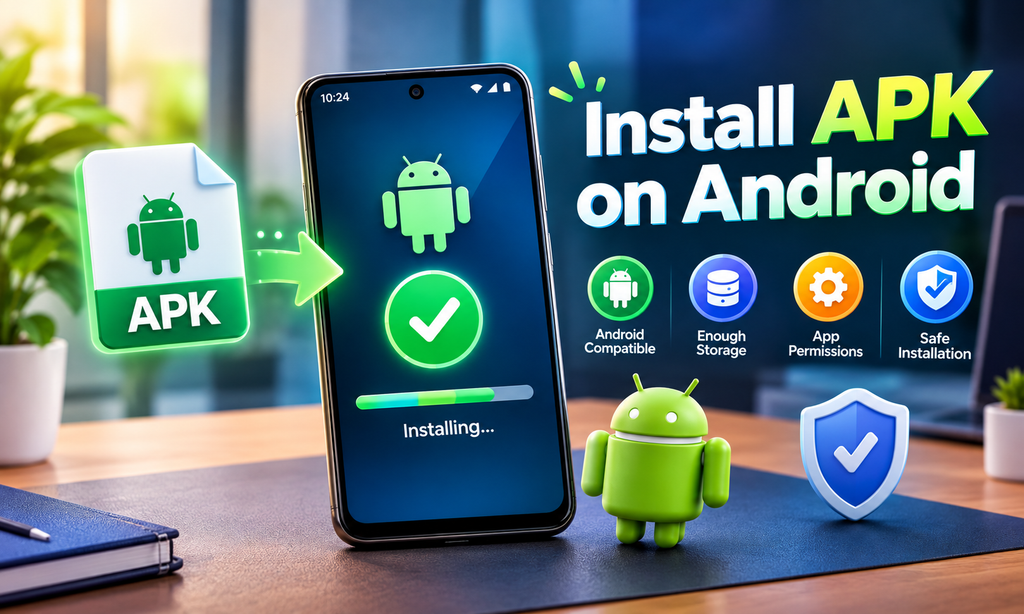
The good news is that installing an APK is usually a straightforward process when the file is compatible with your device and you follow the correct steps.
This APK installation guide for Android beginners explains what an APK is, what to check before installation, how to install one safely, and how to troubleshoot common problems.
What Is an APK File?
APK stands for Android Package Kit. It is the package format used to install applications on Android devices.
When you download an APK file, it contains the files Android needs to install an application. The file normally has an .apk extension.
APK files can be useful when:
- An application is distributed outside Google Play
- You need a particular app version
- You want to install an app from a trusted APK source
- An application is not available through your usual app store
However, an APK should be treated like any other software download. Check the file and its source before installing it.
What to Check Before Installing an APK
Before opening an APK file, take a few minutes to check whether it is suitable for your device.
Check Your Android Version
Some applications require a specific Android version.
You can usually find your Android version under:
Settings → About Phone → Android Version
Check the APK’s requirements and make sure your device meets them.
Check Available Storage
Make sure your phone has enough free storage for the APK and the installed application.
If your storage is nearly full, remove unnecessary files or unused apps before starting the installation.
Check the APK File
Make sure the file has the correct .apk extension and that the download completed successfully.
Avoid files with suspicious names, unexpected extensions, or instructions asking you to make unnecessary security changes.
Check the Download Source
Only download APK files from sources you trust.
A file can install successfully and still create security or privacy risks if it comes from an unreliable source.
How to Install an APK on Android
Once you have checked the APK and your device, you can begin the installation.
Step 1: Download the APK
Download the APK file to your Android phone.
If you use a web browser, the file will usually be saved in the Downloads folder.
Wait until the download has completely finished before opening the file.
Step 2: Find the APK File
Open your phone’s Files or File Manager application.
Go to the Downloads folder and locate the APK you downloaded.
Check the filename before opening it to make sure you have selected the correct file.
Step 3: Allow Installation From the Relevant Source
Android may prevent an application from installing an APK if installation from that source has not been allowed.
For example, if you downloaded the APK through a browser, Android may ask you to allow that browser to install unknown apps.
Depending on your Android version, this setting can generally be found under:
Settings → Apps → Special App Access → Install Unknown Apps
Select the relevant source and allow the permission when necessary.
Only enable this permission for sources you trust.
Step 4: Start the Installation
Return to the APK file and tap it.
Android will display an installation screen. Review the information shown and select the installation option.
Wait while Android completes the process.
Step 5: Open the Application
When installation is finished, select Open to launch the application.
You can also find the newly installed app in your regular Android app list.
For additional information about Android security, app installation, and device settings, you can also refer to Google’s official Android Help.
How to Install an APK From the Downloads Folder
Most APK files downloaded through a browser can be found in the Downloads folder.
Open:
Files → Downloads
Find the APK and tap it.
If Android displays a security or permission message, review it carefully. If the installation source is trusted, allow the required permission and return to the APK installation screen.
Why Is Android Blocking My APK?
Android can block an APK installation for several reasons.
Common causes include:
- Installation from the current source is not permitted
- The APK is incompatible with your Android version
- The file is damaged or incomplete
- Your device does not have enough storage
- An existing version of the application creates a conflict
- Android security settings prevent the installation
Do not disable important security protections simply to force an APK to install.
Instead, identify the reason for the warning and address that specific problem.
What Does “App Not Installed” Mean?
If Android displays an “App not installed” message, the APK could not be installed successfully.
Possible causes include:
- Insufficient storage
- Incompatible Android version
- Damaged APK
- Incorrect APK variant
- Existing application conflict
- Installation permission problems
What If the APK Keeps Crashing?
An application that installs successfully can still crash after opening.
This can happen because of compatibility problems, missing requirements, insufficient resources, corrupted files, or application-specific issues.
Try these basic steps:
- Restart your Android phone.
- Check whether the APK supports your Android version.
- Make sure enough storage is available.
- Close unnecessary applications.
- Check whether a newer compatible version is available.
- Reinstall the application if the installation appears incomplete.
Avoid repeatedly installing random APK versions without checking their requirements.
Can You Install an APK on Any Android Phone?
Not necessarily.
Android devices can use different operating system versions, processor architectures, hardware configurations, and available storage capacities.
An APK designed for one environment may not work correctly on another device.
Before installation, check the application’s Android requirements and make sure your device is supported.
Should You Update an APK After Installation?
An update may be useful when a newer compatible version fixes bugs, adds features, improves compatibility, or addresses other application issues.
However, you should check the version and requirements before installing an update.
If you want to learn more, read our guide on how to update APK on Android.
How to Install an APK More Safely
Installing an APK requires more attention than simply opening a file.
Use these basic practices:
Download From a Trusted Source
Check where the APK came from before downloading it.
Verify the File
Check the application name, version, file extension, and other available information.
Review Permissions
Pay attention to the permissions requested during installation or when the app first opens.
Permissions should make sense for the application’s purpose.
Keep Android Updated
Keeping your Android system reasonably up to date can help maintain compatibility and security.
Protect Your Account Information
Never share passwords, OTPs, PINs, or other sensitive account information with someone claiming to help you install an APK.
Be Careful With Payment Requests
If an application involves deposits, withdrawals, or payments, use only payment methods and instructions displayed through trusted, verified channels. Avoid sending money to unofficial contacts simply because an APK or message tells you to do so.
APK Installation Guide for Android Games
The same basic installation process applies to many Android game APKs.
Before installing a game, check:
- Android version requirements
- Available storage
- APK version
- File size
- Installation source
- Additional game data requirements
For example, if you are installing a game APK, you can also review the specific installation and app information in our 90X Game APK guide.
You can also review our 98S Game guide for additional information about a specific Android APK installation.
Can You Install an APK Without Google Play Store?
Yes. Android can allow APK installation outside Google Play when the relevant installation permission is enabled.
However, installing an APK outside Google Play does not automatically mean that the file is safe.
Always consider the source, file details, permissions, Android compatibility, and security warnings before continuing.
Can You Delete the APK After Installation?
Yes, in most cases you can delete the downloaded APK after the application has been successfully installed.
The installed application normally uses its own files rather than requiring the original APK to remain in your Downloads folder.
Deleting the APK can also free a small amount of storage space.
What Should Beginners Do If an APK Will Not Install?
Start with the simplest checks:
- Confirm that the APK downloaded completely.
- Check your Android version.
- Check available storage.
- Review the installation permission.
- Make sure the APK is intended for your device.
- Check whether another version of the same app is already installed.
- Download a fresh copy if the file appears damaged.
If the problem continues, look at the exact error message rather than repeatedly attempting the installation.
Frequently Asked Questions
What is an APK?
APK stands for Android Package Kit. It is the package format used to install applications on Android devices.
How do I install an APK for the first time?
Download the APK, open it through your Downloads folder or file manager, allow installation from the relevant source when Android requests permission, and follow the installation instructions.
Is installing an APK safe?
Safety depends on the APK file, its source, the permissions it requests, and how it is installed. Only use sources you trust and review Android security warnings carefully.
Why does Android block APK installation?
Android may block an APK because installation from the current source is not permitted, the file is incompatible, the APK is damaged, or another security or compatibility issue exists.
Do I need the Google Play Store to install an APK?
No. Android can install APK files outside Google Play when the appropriate permission is enabled.
Can I install an APK on an older Android phone?
It depends on the APK’s minimum Android requirement. If the application requires a newer Android version, it may not install or work correctly on an older device.
Can I delete an APK after installing it?
Yes. Once the application has been installed successfully, the original APK can generally be deleted from your Downloads folder.
Final Thoughts
Installing an APK on Android is relatively simple when you understand the basic process. The most important steps are checking compatibility, verifying the APK file, reviewing the download source, allowing the required installation permission, and completing the installation carefully.
If an APK does not install, avoid making unnecessary changes to your phone. Check the Android version, storage, file integrity, permissions, and existing application versions first.
For more Android APK guides, installation help, troubleshooting information, and app-related resources, visit the APKPlatform.