
How to update apk is a common question for Android users who install applications from APK files. Keeping an APK-based app updated can help you access newer features, improvements, bug fixes, and compatibility changes. When an application is installed from an APK file rather than through the Google Play Store, the update process may be slightly different.
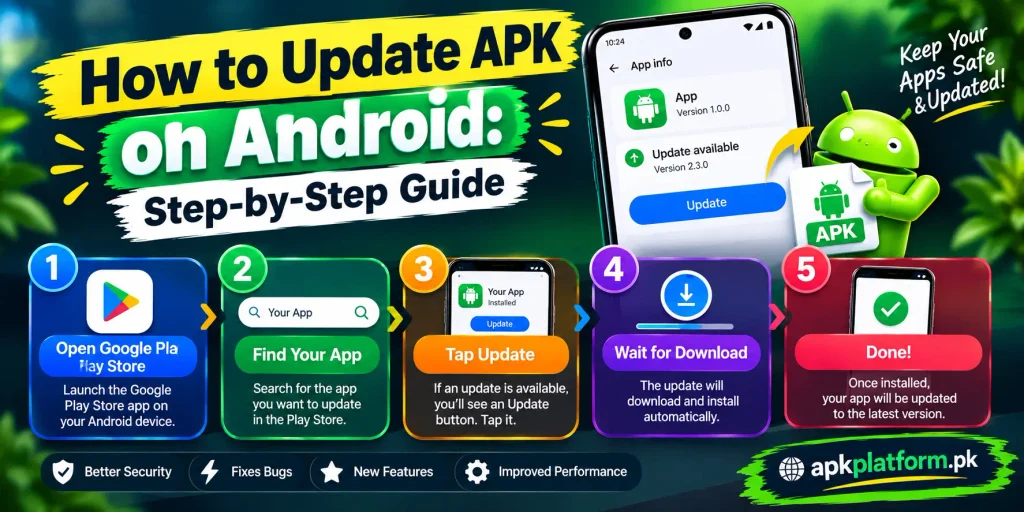
If you are wondering how to update APK files on Android, the main steps are to check the current version, confirm the new APK is compatible with your device, download the correct file, and install it properly.
This guide explains how to update APK on Android, what to check before updating, how to avoid common installation problems, and what to do if the update does not work.
For more Android APK guides, game information, installation help, and troubleshooting tips, visit the APKPlatform.
What Does Updating an APK Mean?
An APK update means installing a newer version of an Android application that is already installed on your phone.
For example, you may have an older version of an app installed and later download a newer APK package. If the new package is compatible with the existing installation, Android may install it as an update rather than creating a separate application.
An update can include:
- New features
- Bug fixes
- Performance improvements
- Security-related changes
- Compatibility improvements
- Changes to the app interface
The exact changes depend on the application and its latest release.
Check the Current APK Version First
Before updating an APK, it is useful to know which version is currently installed.
You can usually check this by opening:
Settings → Apps → Select the App
Depending on your Android version and the application, the installed version may be displayed in the app information section.
You can also find version information inside some applications through their settings or about section.
Knowing your current version helps you determine whether the APK you are about to install is actually newer.
Before updating an APK, check the current version and installation information in our 98S Game guide.
Check Your Android Version
Before downloading an updated APK, check whether your Android device meets its requirements.
Go to:
Settings → About Phone → Android Version
A newer APK may require a newer Android version. If your device does not meet the minimum requirement, the update may fail or the application may not work correctly after installation.
Before updating, check the APK’s listed Android requirements whenever that information is available.
Check Available Storage
An APK update may require additional temporary storage during installation.
If your phone is nearly full, the update may fail even when the APK file itself is relatively small.
Before starting the update:
- Check your available storage
- Remove unnecessary files if needed
- Delete unused applications
- Clear unnecessary downloads
- Make sure there is enough space for the installation
Keeping some free storage available can help prevent installation interruptions.
Download the Latest APK
Once you have confirmed your device requirements, download the APK version you want to install.
Before opening the file, check:
- App name
- Version number
- File size
- Android requirements
- Download source
- File extension
Avoid installing an APK simply because its version number looks newer. Make sure the file is intended for the application and device you are using.
How to Update APK on Android
The basic process is straightforward.
Step 1: Check the Existing App
Open your Android settings and check the application currently installed on your device.
Confirm the app name and current version.
Step 2: Download the New APK
Download the newer APK file to your Android phone.
If the APK is downloaded through a browser, it will commonly appear in the Downloads folder.
Step 3: Open the APK File
Open your file manager or Downloads folder and tap the newly downloaded APK.
Android may ask you to confirm that you want to install the application.
Step 4: Allow Installation When Required
If Android blocks the installation, you may need to allow the application you are using to install unknown apps.
For example, if you opened the APK through your browser, Android may ask you to allow that browser to install applications.
Only enable this permission for a source you trust.
Step 5: Install the Update
Tap the installation option and wait for Android to complete the process.
If the new APK is compatible with the existing application, Android may update the current installation while keeping the application’s existing data.
Step 6: Open the Updated App
After installation finishes, open the application and check whether it works normally.
You can then check the application’s version again to confirm that the update was completed.
For general Android app update guidance and security information, you can also refer to Google’s official Android Help.
Can You Update an APK Without Uninstalling the App?
In many cases, you can install a compatible newer APK directly over the existing version.
This is generally preferable because uninstalling an application first can remove locally stored app data.
However, an update may fail if the new APK is not compatible with the installed version or uses a different package configuration or signing key.
If Android reports that the application cannot be installed, investigate the error before removing the existing app.
Should You Uninstall the Old APK Before Updating?
Usually, you should not uninstall the existing application simply because you want to update it.
If the new APK is designed as an update for the installed application, installing it directly may preserve the existing app data.
Uninstalling should be considered only when there is a specific installation conflict or troubleshooting reason.
Remember that uninstalling an application can remove locally stored data, depending on the application and how its data is stored.
What If the APK Update Fails?
An APK update can fail for several reasons.
Common causes include:
- The new APK is incompatible with your Android version
- The APK file is damaged
- There is not enough storage
- The installed application uses a different package signature
- The APK is not intended as an update for the installed version
- Android has blocked the installation
- The downloaded file is incomplete
If the update fails, check these factors one at a time instead of immediately uninstalling the existing application.
APK Says “App Not Installed” During Update
If Android displays “App not installed” when you try to update an APK, first check whether the new APK is compatible with the version already installed.
Also check your available storage and confirm that the APK downloaded completely.
If the problem continues, you can read our guide on fixing the APK not installed error for additional troubleshooting steps.
How to Check Whether the APK Update Worked
After installing the update, you can verify the new version through the application settings or Android’s app information screen.
Go to:
Settings → Apps → Select the App
Look for the version information and compare it with the version number of the APK you installed.
You can also open the application and check whether the expected features or changes are available.
What Happens to App Data After an APK Update?
When a compatible APK is installed as an update, existing application data may remain available.
However, you should not assume that every update will preserve all data.
Before performing a major update, consider whether the application stores important information locally. If the app provides its own backup or account-sync option, use it when appropriate.
Can an APK Update Remove My App Data?
A normal compatible update does not necessarily remove your application data.
However, data loss can occur if you uninstall the existing application before installing the new version, reset the application, or encounter an issue with an incompatible installation.
For this reason, avoid uninstalling an existing application unless there is a clear reason to do so.
How Often Should You Update an APK?
There is no universal schedule for updating every APK.
You can consider updating when:
- A newer stable version is available
- The current version has a known problem
- You need a newly added feature
- Your current version is no longer compatible with your device
- The application requires an update to continue working properly
Before every update, check the version and requirements rather than installing every new file automatically.
Tips for Updating APK Files Safely
A few basic precautions can make the update process safer and easier.
Verify the Application
Make sure the APK is actually for the application you intend to update.
Check the Version Number
Compare the installed version with the new APK version before starting the installation.
Keep Enough Storage Available
Make sure your device has enough free space for the download and installation.
Check Android Compatibility
Confirm that your Android version meets the requirements of the new APK.
Avoid Untrusted Files
Only download APK files from sources you trust. Be cautious with files that have unexpected names, unusual extensions, or suspicious installation requests.
Do Not Disable Security Features Unnecessarily
If Android displays a security warning, review it carefully rather than disabling important protections simply to complete an installation.
Updating a Game APK
Game applications can receive updates that change features, fix bugs, improve compatibility, or modify other parts of the app.
Before updating a game APK, check its current version and make sure the new APK is compatible with your Android device.
Before updating an APK, check the current version and installation information in our 98S Game guide.
You can also review the latest available information for 90X Game APK before installing an update.
For another game APK, the same basic process applies: check the current version, confirm compatibility, download the correct package, and install the update.
Frequently Asked Questions
How do I update an APK on Android?
Check the current application version, download a compatible newer APK, open the file, allow installation when required, and complete the installation.
Can I update an APK without uninstalling it?
Yes, a compatible newer APK can often be installed directly over the existing application.
Will updating an APK delete my data?
A compatible update may preserve existing app data, but this is not guaranteed in every situation. Uninstalling the existing app can remove locally stored data.
Why won’t my new APK update the existing app?
The new APK may be incompatible with the installed version, use a different package signature, require a newer Android version, or have another installation conflict.
How can I check my installed APK version?
Open Settings → Apps, select the application, and look for its version information. The exact location can vary by Android version.
Do I need to uninstall the old APK before installing a new one?
No. If the new APK is a compatible update, you generally do not need to uninstall the existing application first.
What should I do if the APK update says “App not installed”?
Check the APK compatibility, available storage, installation permissions, and existing app version. You should also make sure the downloaded APK is complete and intended for the application.
Final Thoughts
Learning how to update APK files on Android is useful when an application is distributed outside the Google Play Store. The key is to check the current version, Android compatibility, storage, and APK details before starting the update.
Whenever possible, install a compatible newer version directly over the existing application instead of uninstalling it first. This can help avoid unnecessary loss of locally stored app data.
If an update fails, identify the specific installation problem before making major changes to your device. A careful version and compatibility check can resolve many common APK update issues.