
Things to check before installing APK files can help Android users avoid compatibility problems, unwanted applications, misleading downloads, and unnecessary security risks. An APK may install successfully but still cause problems if the file is outdated, damaged, incompatible with the device, or requests access that does not make sense for its purpose.
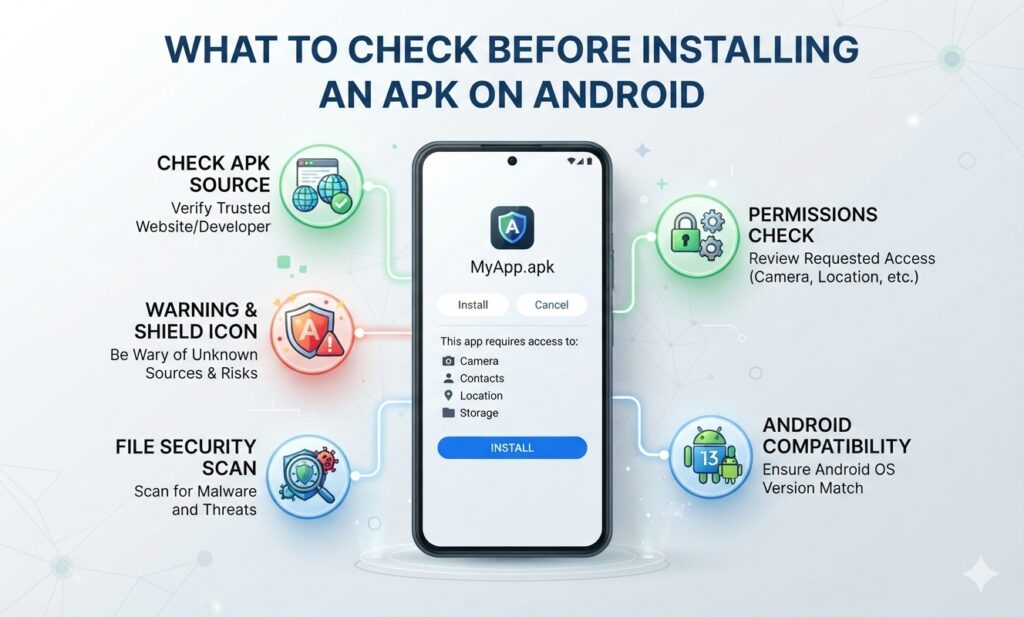
Before installing an APK, it is useful to check the source, app information, Android requirements, file details, permissions, and installation process.
This guide explains the main things to check before installing APK files on an Android phone.
Why Should You Check an APK Before Installing It?
An APK is an Android application package used to install an app outside the standard app-installation process.
Before opening an APK file, checking its basic information can help you determine whether it is suitable for your device and whether you understand what you are about to install.
Important checks include:
- APK source
- Application name
- Version number
- File size
- Android compatibility
- Required permissions
- Installation requirements
- Downloaded file type
These checks only take a few minutes and can help prevent common installation problems.
1. Check Where the APK Comes From
The source of an APK is one of the first things to check.
Use a website or download location that clearly provides information about the application. Be careful with files received through unknown messages, random pop-ups, or unfamiliar links.
Before downloading, check whether the page provides useful details such as:
- Application name
- Version
- File size
- Android requirements
- Installation information
- Update information
Avoid rushing into a download simply because a large button says “Download.”
2. Check the Application Name
Make sure the APK name matches the application you intended to download.
Small differences in names can sometimes cause confusion, particularly when several applications have similar names.
Before installing, compare the downloaded file with the application information shown on the page.
For example, if you are checking an APK-based game, review the available information for the intended app before downloading. You can also check the 786 Bet Game APK page for its application and installation information.
3. Check the APK Version
The version number can help you determine whether you have the intended release.
An APK page may provide information such as:
- Current version
- Previous version
- Update date
- File size
If you already have the application installed, compare its current version with the APK you plan to install.
Installing an older version can sometimes cause compatibility or update-related problems.
4. Check Your Android Version
Not every APK works on every Android device.
Check your phone’s Android version before installation and compare it with the requirements listed for the APK.
To check your Android version:
- Open Settings.
- Select About phone or About device.
- Find Android version.
- Compare it with the APK requirements.
If your Android version is too old for the application, the APK may fail to install or may not work correctly.
5. Check Available Storage
Insufficient storage can cause installation problems.
An APK itself may only require a certain amount of space, but the installed application can require additional storage for app data, updates, and temporary files.
Before installation:
- Open your phone’s Settings.
- Go to Storage.
- Check available space.
- Remove unnecessary files if storage is low.
Keeping sufficient free space can make the installation process smoother.
6. Check the APK File
After downloading an APK, review the file before opening it.
Check:
- File name
.apkextension- File size
- Download location
If the file has an unexpected name or extension, do not install it immediately.
A file that does not match the application information should be investigated before installation.
7. Review App Permissions
Permissions determine what parts of your Android device an application can access.
Depending on the application, permissions may include access to:
- Camera
- Microphone
- Location
- Contacts
- Files and media
- Notifications
- Phone features
- Nearby devices
Consider whether the requested access makes sense for the application’s purpose.
For example, an application that does not need camera functionality may not have an obvious reason to request camera access.
You should review permissions carefully rather than automatically allowing every request.
You can also review the APK and installation information provided on our R988 Game APK page before installing the app.”
8. Check for Unexpected Installation Requirements
Some APK installation instructions may include additional steps.
Read the installation instructions before starting. Look for requirements related to:
- Android version
- Storage
- Existing app versions
- Required settings
- Additional files
- Account requirements
If instructions are unclear, avoid making changes you do not understand.
9. Watch for Fake Download Buttons
A page can contain advertisements or buttons that look similar to the actual APK download option.
Before clicking:
- Read the surrounding information.
- Confirm the application name.
- Check where the button leads.
- Avoid unexpected pop-ups.
- Do not download unrelated files.
If you accidentally download something that does not match the intended APK, do not install it without checking the file first.
10. Check Whether the APK Matches Your Device
Compatibility involves more than the Android version.
An application may also depend on:
- Processor architecture
- Device capabilities
- Screen requirements
- Available storage
- Android features
- Application dependencies
If an APK is designed for a different device configuration, it may not install or function properly.
11. Review Your Existing App Before Updating
If the APK is replacing an application already installed on your phone, check the current version first.
An incompatible update can cause installation errors or other problems.
If you are unsure about updating, make sure you understand whether the new APK is intended to update the existing application or install separately.
You can also review the Zor77 Game APK page for information related to its APK and installation process.
12. Avoid Sharing Sensitive Information
Never enter sensitive information simply because an APK installation page asks for it.
Be especially careful with:
- Passwords
- OTP codes
- Banking credentials
- PINs
- Recovery codes
APK installation should not require you to disclose sensitive account information to an unknown person or unofficial contact.
What If the APK Does Not Install?
If an APK fails to install, do not immediately download multiple versions from random sources.
First check:
- Android compatibility.
- Available storage.
- APK file integrity.
- Existing application version.
- Installation settings.
- Whether the APK is intended for your device.
You can also review our guide on the APK not installed error for additional troubleshooting steps.
Should You Install Every APK You Download?
No. Downloading an APK does not mean that you have to install it.
If the application information does not match the file, the requirements are unclear, or the permissions seem inappropriate for the app’s purpose, pause and review the situation before continuing.
Quick APK Safety Checklist
Before installing an APK, check:
- Source of the APK
- Application name
- Version number
- File size
- APK file extension
- Android version requirements
- Available storage
- Device compatibility
- App permissions
- Installation instructions
- Existing application version
- Unexpected download buttons or redirects
This checklist can help you review the most important details before installation.
Before installing an APK from outside Google Play, review Google’s official guidance on downloading apps to your Android device.
FAQs
What should I check before installing an APK?
Check the APK source, application name, version, file size, Android requirements, permissions, device compatibility, and installation instructions.
How do I know if an APK is compatible with my Android phone?
Check the APK’s Android requirements and compare them with your phone’s Android version and available hardware resources.
Should I check APK permissions before installing?
Yes. Reviewing permissions can help you understand what access the application may request from your device.
What happens if an APK is not compatible?
The APK may fail to install, crash after installation, or have certain features that do not work correctly.
Can I delete an APK after installation?
Yes. Once an application has been installed, the downloaded APK file can generally be deleted if you no longer need it.
Should I install an APK if I am unsure what it contains?
It is safer to pause and verify the file and application information before installation rather than installing an APK you do not understand.
Final Thoughts
Knowing the things to check before installing APK files can help Android users make safer and more informed installation decisions. Checking the source, version, Android requirements, file details, permissions, storage, and compatibility can also reduce common installation problems.
Take a few moments to verify the APK before opening it, and avoid rushing through unfamiliar download or installation prompts.
For more Android APK guides, installation information, troubleshooting tips, and safety resources, visit our homepage.