
Why APK won’t install on Android is a common problem when a downloaded APK file fails to install correctly. The issue may be caused by insufficient storage, Android compatibility problems, a damaged APK file, installation restrictions, an existing app version, or an incorrect APK variant.
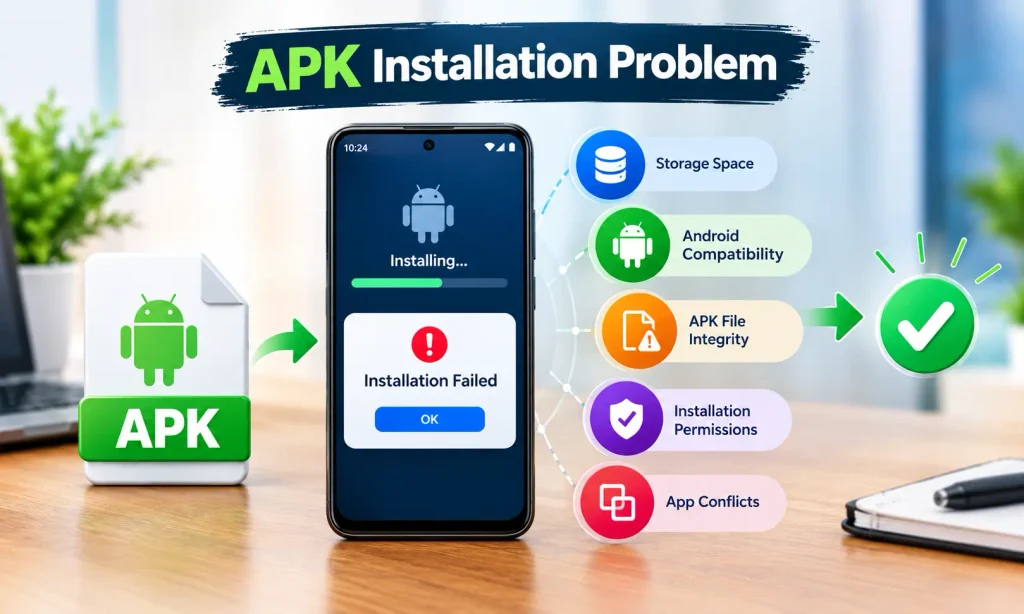
If you are trying to install an Android application manually, checking these possible causes can help you identify the problem. This guide explains why APK files may fail to install and provides practical steps to troubleshoot common installation issues.
“For more Android APKs, installation guides, troubleshooting tips, and useful app information, visit apkplatform.
Why APK Won’t Install on Android?
There is no single reason why an APK may fail to install. Before installing an application, Android checks several factors related to the file, device, storage, permissions, and existing applications.
Common causes include:
- Not enough storage space
- An incompatible Android version
- A damaged or incomplete APK file
- Installation restrictions
- An existing version of the application
- An incorrect APK variant
- Conflicting app signatures
- Temporary Android system problems
- Security restrictions
- An APK that is not designed for your device
Checking these possibilities one by one can help determine the cause.
1. Check Your Android Storage
Low storage is one of the simplest reasons an APK may not install.
Even when the APK file itself is small, Android may need additional temporary space while preparing and installing the application.
To check your available storage:
- Open Settings on your Android phone.
- Find Storage or a similar option.
- Check how much free space is available.
- Remove unnecessary files or unused applications if storage is nearly full.
- Try installing the APK again.
Large videos, downloaded files, duplicate photos, and unused applications can quickly consume available storage.
If your phone has very little free space, freeing some storage before installation may resolve the problem.
2. Check Your Android Version
Android applications have compatibility requirements. An APK designed for a newer Android version may not install correctly on an older device.
To check your Android version:
- Open Settings.
- Go to About Phone or About Device.
- Find the Android version.
- Check the APK’s stated requirements.
- Try installation again if your device meets those requirements.
If your Android version is below the minimum requirement of the application, installation may fail.
You should also avoid installing random older versions simply to bypass a compatibility issue unless you have verified that the version is appropriate for your device.
3. Check Whether the APK File Is Complete
A damaged or incomplete download can prevent installation.
This can happen when the download is interrupted, the internet connection becomes unstable, or the file is not saved correctly.
Before trying the installation again:
- Make sure the download completed successfully.
- Check that the file has an APK extension.
- Download the file again if you suspect corruption.
- Avoid files that appear incomplete.
- Make sure the file is stored properly on your device.
If the same APK repeatedly produces an installation error, the file itself may be the problem.
A fresh download from a trusted source can help determine whether the original file was damaged.
4. Allow Installation From the Relevant Source
Android can restrict applications from being installed through sources that do not have permission to install APK files.
Depending on your Android version and phone manufacturer, you may see an option such as:
Settings → Security or Apps → Install unknown apps
You may then need to select the browser or file manager from which you opened the APK and allow installation.
The exact menu can vary between Android devices.
Only enable this permission for a source you trust. After completing the installation, you can review the setting again and disable the permission if you do not need it.
5. Check for an Existing Version of the App
An existing version of the same application can sometimes cause an installation conflict.
For example, if your phone already has an application installed and the new APK uses a different signing key, Android may refuse to install it as an update.
Before uninstalling an existing application, check whether it contains important local data.
If appropriate, removing the old version and then installing the new APK may resolve the problem. However, uninstalling an application can remove locally stored data, so make sure important information is backed up or connected to an account before doing this.
6. Make Sure You Have the Correct APK
Some applications are distributed in different versions for different devices.
An APK may be designed for a specific processor architecture, Android version, or device configuration.
If the APK is not intended for your device, installation may fail or the application may not work correctly after installation.
Before downloading another version, check:
- Minimum Android version
- Device compatibility
- APK architecture
- File type
- Application version
- Storage requirements
Using the correct APK for your device is important because downloading a random version may create additional compatibility problems.
7. Restart Your Android Phone
A temporary Android system problem can sometimes interfere with an installation.
Restarting the phone can refresh background processes and clear temporary system issues.
After restarting:
- Wait until the phone has completely started.
- Open your file manager.
- Go to the Downloads folder.
- Locate the APK file.
- Tap the file and try the installation again.
If the APK still does not install, continue checking the other possible causes.
Check the APK File Location
If you downloaded an APK using a web browser, it is usually stored in the Downloads folder.
Open your file manager and check:
Downloads → APK file
If you cannot find the file, check your browser’s download history or search your device for its name.
Make sure you are opening the actual APK file rather than an incomplete download or another file with a similar name.
What If Android Says “App Not Installed”?
The “App not installed” message is a general installation error rather than a single diagnosis.
Possible causes include:
- Incompatible Android version
- Insufficient storage
- Corrupted APK
- Existing application conflict
- Incorrect APK variant
- Installation restrictions
- Package conflicts
- Signing or version problems
If you see this message, check the basic requirements first instead of repeatedly trying the same file.
For a more detailed troubleshooting guide, you can read our APK Not Installed Error.
What If the APK Installs but Will Not Open?
Installation and application startup are separate problems.
An APK can sometimes install successfully but fail to open because of compatibility issues, missing requirements, damaged application data, or other technical problems.
If the application does not open, check:
- Android compatibility
- Available storage
- Application permissions
- App data
- Internet connection
- Application version
- Device performance
You can also restart the phone and try opening the application again.
If the problem started immediately after an update, check whether the new version is compatible with your Android device.
Try Installing the APK Again
If you have checked the main requirements and the APK still does not install, try downloading the file again from a trusted source.
A fresh download can help if the original file was incomplete or damaged.
Before trying again:
- Delete the problematic APK file.
- Check your available storage.
- Confirm your Android version.
- Download the appropriate APK.
- Allow installation from the relevant source if required.
- Start the installation again.
If the same error appears, look at the exact message displayed by Android. The wording can provide a useful clue about the underlying problem.
APK Installation for Android Games
Android game APKs can have additional requirements because games may need more storage, newer Android versions, internet access, or specific device compatibility.
Before installing a game APK, check its requirements and make sure your phone has enough free storage.
If you are installing 98S, you can review our 98S Game guide for additional information about the APK and Android installation process.
You can also check our 90X Game APK guide for information related to installing and using the game on Android.
How to Avoid APK Installation Problems
Taking a few basic precautions can reduce common APK installation problems.
Check Compatibility First
Check your Android version and the APK’s minimum requirements before downloading the file.
Keep Enough Storage Available
Make sure your phone has sufficient free space for both the APK and the installation process.
Use a Complete APK File
Avoid interrupted downloads and files that appear incomplete or corrupted.
Use a Trusted Download Source
Download APK files from sources you trust and avoid suspicious download pages or unexpected links.
Review App Permissions
After installation, review the permissions requested by the application.
Be cautious if an application asks for access that does not appear necessary for its normal function.
Keep Android Updated
Android updates can include security improvements, bug fixes, and compatibility changes.
Keeping your device reasonably up to date can help reduce certain software-related problems.
Protect Your Account Information
Never share passwords, OTPs, PINs, or other sensitive account information with unknown people or suspicious applications.
If an application asks you to provide sensitive information through an unusual page or message, stop and verify the request first.
Can an APK Be Installed Without Google Play Store?
Yes, Android can support installation of APK files outside Google Play Store when the device permits installation from the relevant source.
However, installing an APK outside the Play Store means you should pay particular attention to the file source, compatibility, permissions, and security of the application.
Do not install an APK simply because it promises an unusual feature, modified functionality, or guaranteed benefits.
Is It Safe to Install an APK?
Installing an APK is a normal Android function, but the safety of a particular APK depends on the file and where it came from.
Before installing an APK, consider:
- Where the file came from
- Whether the download completed correctly
- Whether the APK matches your device
- What permissions the application requests
- Whether the application asks for sensitive information
- Whether payment information is requested
- Whether the file appears to have been modified
Avoid suspicious files and do not ignore security warnings without checking their cause.
Before installing an APK, you can also review Google’s official Android Help for general Android security and app-installation guidance.
Why APK Won’t Install Even After Checking Everything?
If you are still wondering why APK won’t install on Android after checking storage, compatibility, permissions, and the file itself, there may be a deeper compatibility or package issue.
Try the following:
- Restart the phone.
- Download the APK again.
- Check the Android version.
- Check available storage.
- Remove an incompatible existing version if appropriate.
- Confirm that you have the correct APK variant.
- Check whether Android displays a specific error message.
If none of these steps works, the APK may simply not be compatible with your device.
Frequently Asked Questions
Why APK won’t install on Android?
An APK may not install because of low storage, an incompatible Android version, a damaged file, installation restrictions, an existing application conflict, or an incorrect APK variant.
Why does Android say “App Not Installed”?
“App Not Installed” is a general installation error. It can be caused by compatibility problems, insufficient storage, corrupted files, package conflicts, or an unsuitable APK.
Can low storage prevent APK installation?
Yes. Android may need additional temporary space while installing an APK, so very limited free storage can prevent installation.
Why does an APK install but not open?
The application may have compatibility problems, missing requirements, insufficient device resources, damaged data, or another startup issue.
Should I delete the old version before installing an APK?
Not always. If the new APK is compatible with the installed version, it may update normally. If there is a package or signature conflict, removing the old version may help, but check your data and account information first.
Can I install an APK on an older Android phone?
It depends on the APK’s minimum Android requirement. If the application requires a newer Android version than your phone supports, installation may fail.
Can restarting Android fix an APK installation problem?
A restart can resolve temporary system issues, but it will not fix an incompatible or damaged APK.
What should I do if the same APK keeps failing?
Check the Android version, storage, installation permissions, APK requirements, and file integrity. If the problem continues, the APK may not be compatible with your device.
Final Thoughts
Understanding why APK won’t install on Android makes it easier to identify the source of an installation problem. In many cases, the cause is related to storage, Android compatibility, a damaged file, installation permissions, or an existing application conflict.
Start with the simplest checks: confirm your Android version, free some storage if necessary, verify the APK file, and make sure installation from the relevant source is permitted.
For safer APK installation, use a trusted download source, review application permissions, protect your account information, and pay attention to Android security warnings. If an APK continues to fail after these checks, the file may not be suitable for your device.